
Two-Factor Authentication (2FA)
Two-Factor Authentication (2FA) adds a critical layer of security to your Trimlink workspace. When activated, authenticating into your account requires both your standard password and a time-sensitive verification code generated by an external authenticator app. This ensures your account remains secure even if your password is compromised.
1. Initiate 2FA Setup
To begin securing your account, navigate to your profile settings:
- Click on your Profile Icon located in the top navigation bar.
- Select My Profile from the dropdown menu.
- Scroll down to locate the Two-factor authentication section.
- Toggle the switch to Enable Two-factor authentication.
Enable 2FA Screen Preview

2. Link Your Authenticator App
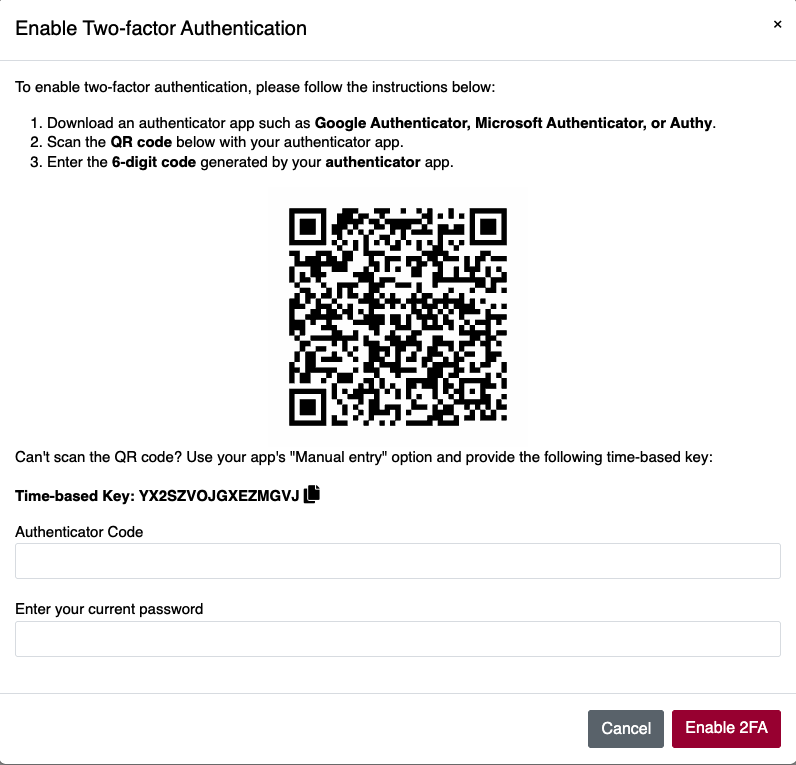
Once 2FA is toggled on, the system will generate a secure QR code on your screen.
Open your preferred authenticator app on your mobile device and scan the QR code to link your Trimlink account.
Supported Authenticator Apps: Trimlink supports standard Time-based One-Time Password (TOTP) applications, including:
- Google Authenticator
- Microsoft Authenticator
- Authy
(Note: If your camera is broken or you cannot scan the QR code, select the manual setup option in your app and enter the alphanumeric setup key provided on your screen).
QR Code Setup Screen Preview
3. Verify and Complete Setup
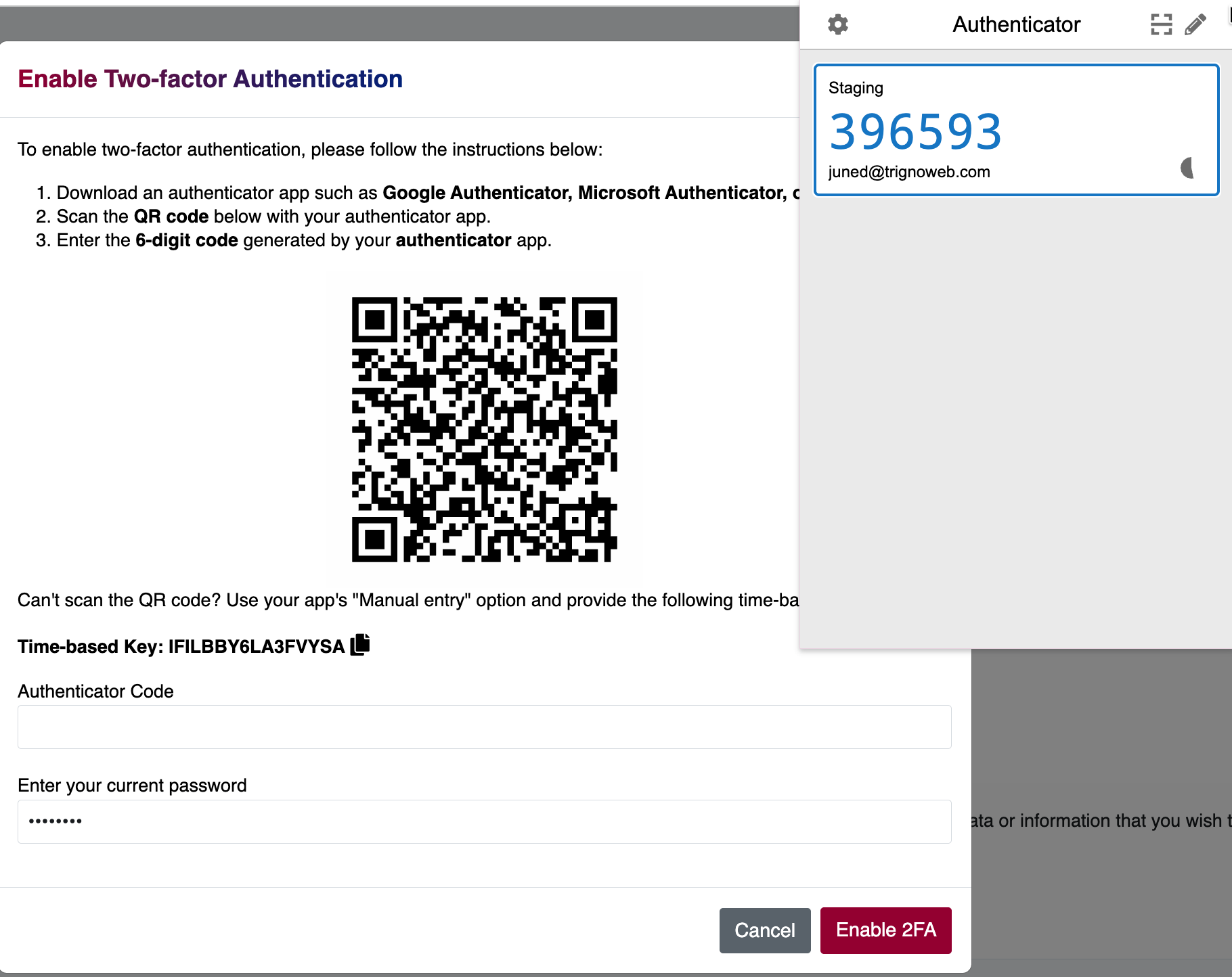
To prove the authenticator app is synced correctly, you must complete a final verification step.
- Enter the current 6-digit verification code displayed in your authenticator app.
- Enter your Trimlink account Password.
- Click Verify to finalize the setup.
Authenticator App Verification Screen Preview
Important System Behavior: Upon successful verification, 2FA will be immediately activated. For security purposes, the system will automatically sign you out of your current session. You will need to sign back in using your new 2FA credentials.
4. Secure Your Backup Codes
Immediately after activating 2FA, you will be presented with a list of one-time backup codes. These codes are your only method of account recovery if your mobile device is lost, stolen, or broken.
Critical Security Warning:
- Download or copy these codes immediately. Store them in a secure, offline location (such as a password manager or physical safe).
- Each backup code is strictly for one-time use.
- Trimlink support cannot bypass 2FA if you lose both your authenticator app and your backup codes.
Backup Codes Screen Preview

5. Signing In with 2FA Active
Once Two-Factor Authentication is active, your standard login process will include a secondary security challenge:
- Enter your registered email address and password on the Sign-In page.
- When prompted, open your authenticator app and enter the current 6-digit code.
- Complete the sign-in.
Emergency Access: If you do not have access to your authenticator app, click the prompt to enter one of your saved backup codes instead of the 6-digit TOTP code.
Frequently Asked Questions
- An authenticator app generates time-sensitive verification codes (TOTP). Popular options include Google Authenticator, Microsoft Authenticator, and Authy. Any app that supports time-based authentication codes will work seamlessly with Trimlink.
- Backup codes are one-time-use recovery codes that allow you to bypass the authenticator app if you lose your mobile device. You must download them immediately after enabling 2FA and store them securely.
- Authenticator apps typically generate a new 6-digit code every 30 seconds. This constant refresh ensures maximum security against intercepted credentials.
- Yes, you can disable Two-Factor Authentication at any time from your profile settings. However, we strongly recommend keeping 2FA enabled to protect your workspace.
- If you enter an incorrect 2FA code multiple times, access will be denied and your account may be temporarily locked to prevent unauthorized entry. Ensure your authenticator app is synced to the correct time zone.