How to Reset Your Trimlink Password
If you have lost or forgotten your password, you can easily restore access to your account. This guide walks you through securely resetting your credentials using your registered email address.
The Account Recovery Process
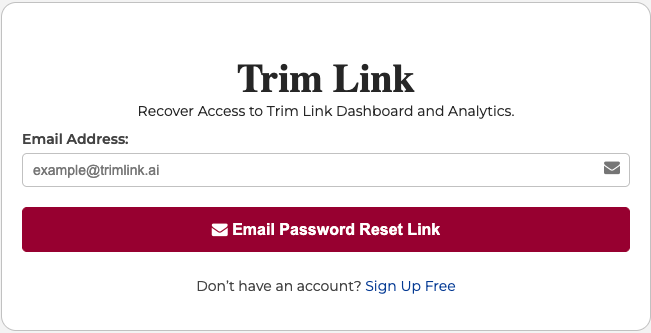
Step 1: Request a Reset Link
To initiate the recovery process, you need to verify your account email.
- Navigate to the Trimlink Forgot Password page.
- Enter the email address associated with your Trimlink account.
- Click to submit your request.
Note: If the email address is linked to an active Trimlink account, our system will dispatch a secure recovery email. If the email is not recognized, the system will notify you so you can check for typos.
Step 2: Authorize via Email
Check your inbox for an email from Trimlink containing your secure password reset link. Clicking this link authorizes you to change your credentials.
Important Security Notes:
- Time-Sensitive: For your protection, the reset link expires in 30 to 60 minutes. If it expires, you must request a new one.
- One-Time Use: The link will become inactive as soon as your new password is saved.
- Check Spam: If you do not see the email within a few minutes, check your spam or junk folder.
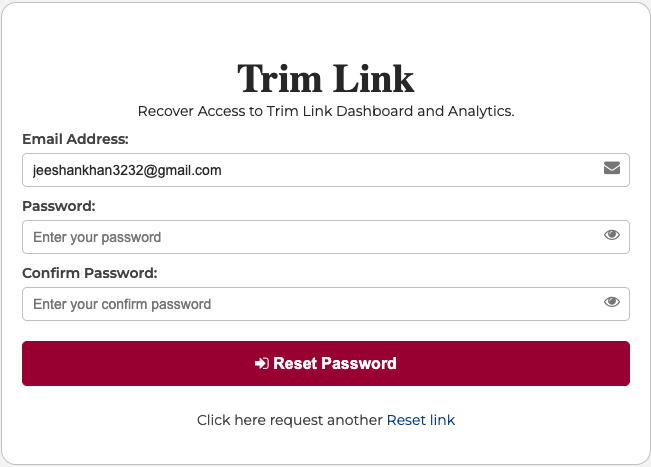
Step 3: Set Your New Credentials
Once you click the link in your email, you will be redirected to a secure page to create your new password.
- Type your New Password. (Remember: It must contain at least one uppercase letter, one lowercase letter, one number, and one special character).
- Type it again in the Confirm Password field to ensure they match exactly.
- Click to save your changes.
Recovery Complete!
Once submitted, your account is instantly updated with your new credentials, and your previous password is permanently invalidated. You will be redirected to the Trimlink Sign-In page where you can log in immediately.
Troubleshooting Account Recovery
If you are encountering issues during the password reset process, review these common solutions:
- Missing Email: Ensure you typed your email address correctly on the request page. Check your spam, junk, or promotional folders.
- Expired Link Error: If you click the link and receive an error, the 30-60 minute window has likely closed. Return to step one and generate a fresh link.
- Passwords Do Not Match: Ensure both the "New Password" and "Confirm Password" fields are identical and meet the security requirements.
If the issue continues after trying these steps, please contact our support team on our support page or email us at [email protected] for technical assistance.
Frequently Asked Questions
- First, check your spam or junk folder. If it is not there, ensure you entered the exact email address associated with your Trimlink account. You can request a new reset email if needed. If issues persist, please contact our support team.
- For security reasons, the password reset link is only valid for a limited time (typically 30-60 minutes). If it expires, simply return to the Forgot Password page and request a new one.
- No. Once you successfully reset your password, your old password is immediately invalidated. You must use your newly created credentials for all future sign-ins.
- If you cannot recall your registered email address, try testing any secondary email addresses you might have used. If you are still unable to locate your account, please contact our support team for secure assistance.
- Yes. The reset link is unique, time-sensitive, and delivered exclusively to your registered inbox. Your new password is fully encrypted, ensuring your workspace remains protected.