Securely Sign In to Your Trimlink Account
This guide explains how to authenticate and access your Trimlink dashboard using either a quick social login or your standard email credentials.
1. Choose Your Sign-In Method
Option A: Sign In with a Social Account (Fastest)
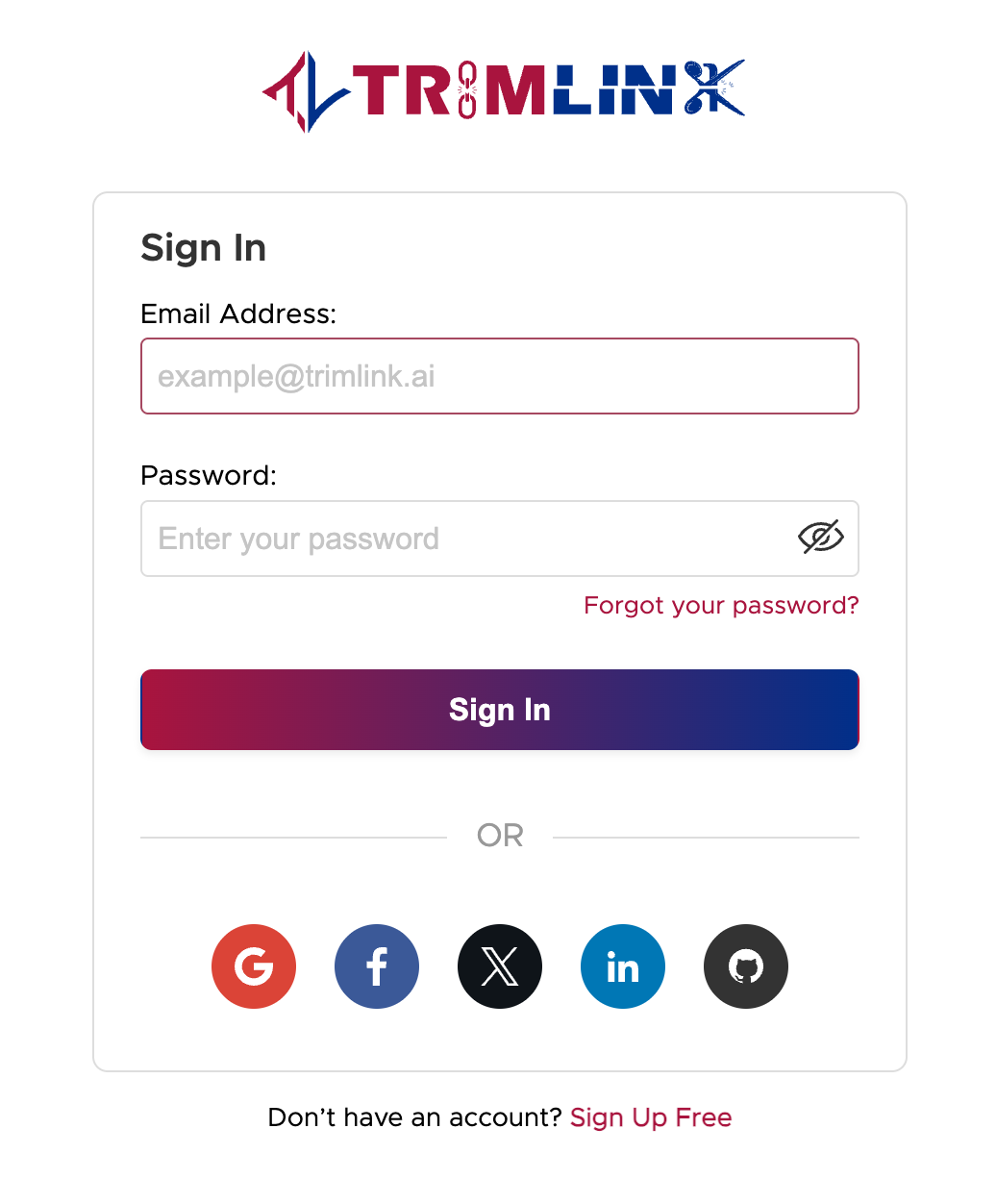
Social sign-in is the most efficient way to access your account because it eliminates the need to remember a separate password. You can instantly log in using any of the following supported platforms: Google, Facebook, X, LinkedIn, or GitHub.
How to authenticate:
- Navigate to the Trimlink Sign-In page.
- Click your preferred social platform from the options below the main form.
- Authorize the login if prompted by the social provider.
- You will be instantly redirected to your Trimlink dashboard.
Important Note: Trimlink securely verifies your identity through the social provider. No email verification is required. If you use a social platform for the very first time, a new account will be created and provisioned automatically.
Sign-In Form Preview
Option B: Sign In Manually (Email & Password)
If you registered your account manually, you can securely access your workspace using your email address and password.
How to authenticate:
- Navigate to the Trimlink Sign-In page.
- Enter your registered Email Address.
- Type in your Password.
- Click Sign In to access your dashboard.
Important Notes:
- Your email address must be verified before you can successfully log in.
- Ensure you are using the exact email address associated with your registration.
2. Troubleshooting Common Sign-In Issues
If you are having trouble accessing your account, review the common scenarios below before reaching out to support:
- Invalid Credentials: Double-check your email and password for typos. Passwords are case-sensitive.
- Forgotten Password: If you cannot remember your password, click the Forgot Password link on the sign-in page to securely reset it.
- Unverified Account: If you signed up manually but cannot log in, check your inbox (and spam folder) for the initial verification email. You must click the verification link before your first login.
- Social Login Errors: Ensure you are logged into the correct social profile in your browser. Clearing your browser cache or trying an incognito window can resolve persistent session errors.
If you have tried the steps above and still cannot access your dashboard, please contact our support team for technical assistance.
Frequently Asked Questions
- If you forget your password, simply use the Forgot Password option on the sign-in page. Instructions to reset your credentials will be sent to your registered email address.
- No. When you sign in using a social account like Google, Facebook, X, LinkedIn, or GitHub, email verification is not required. Your identity is securely authenticated by the social provider.
- Currently, your Trimlink account primarily links with the first social provider you use. To manage or change your primary authentication method, please contact our support team.
- First, ensure you are logged into the correct social account in your browser. If issues persist, try clearing your browser's cache and cookies. If you also have an email and password set up, try signing in with those credentials.
- Double-check that your email address is spelled correctly and has been verified. If you are unsure of your password, use the Forgot Password tool. Confirm you are using the exact email address registered with Trimlink.