
Edit and Delete Collections
As your marketing campaigns scale and evolve, your organizational needs will change. Trimlink makes it easy to rename collections, update descriptions, add or remove assigned URLs, and safely delete folders that are no longer needed.
Access Collection Settings
To modify an existing collection:
- Open your Dashboard and select your active workspace.
- Navigate to Collections from the left sidebar menu.
- Locate the collection you want to modify in the main listing.
- Click the Edit button (pencil icon) next to the collection name.
Phase 1: Update Collection Information
Once the edit screen is open, you have full flexibility to reorganize your campaign group.
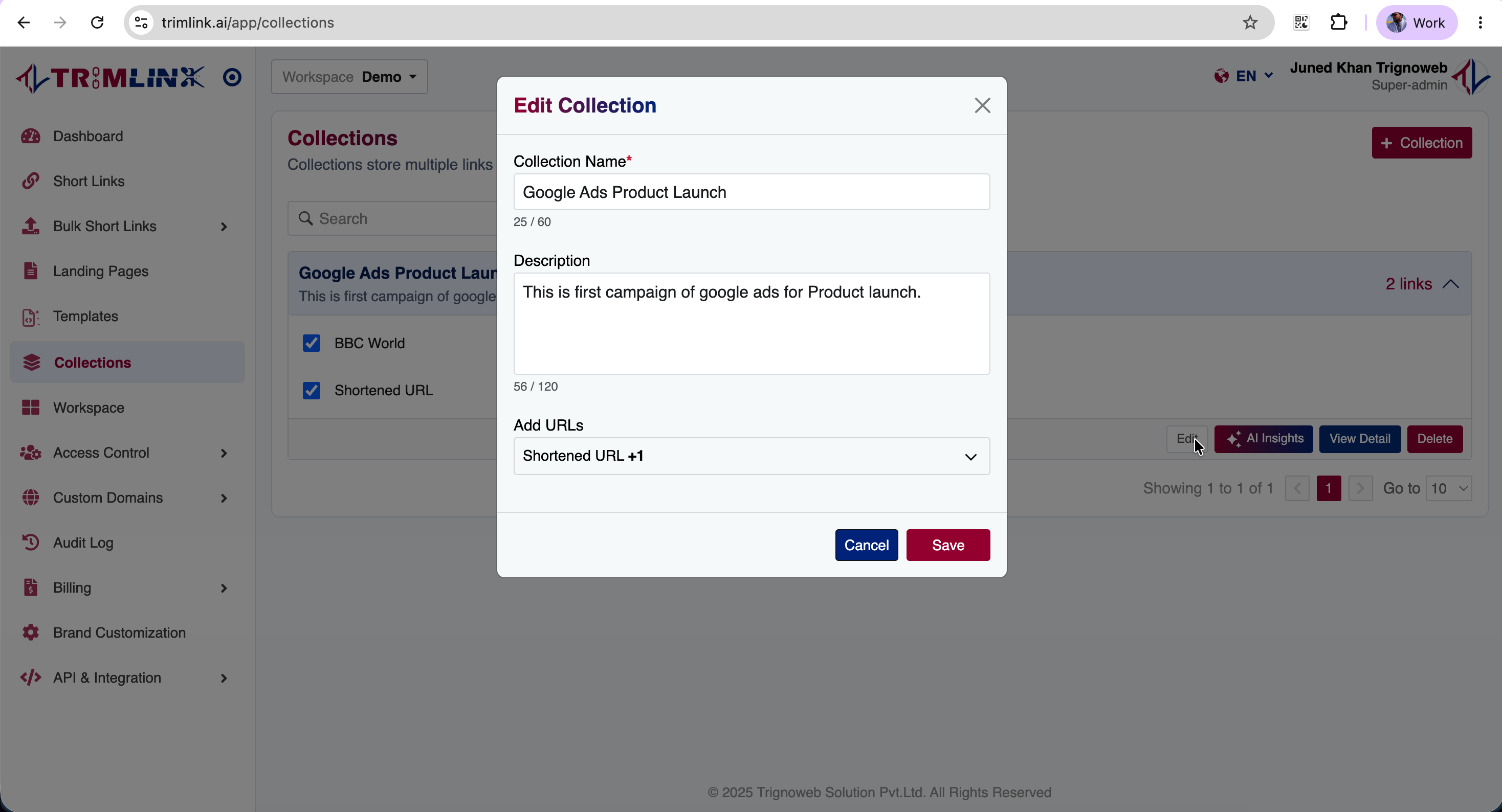
1. Update Core Details
You can freely modify the internal branding of the folder:
- Collection Name: Rename the folder to reflect its current purpose (e.g., changing Q1 Promo to Q2 Promo).
- Description: Update the contextual description to help team members understand what the folder is currently being used for.
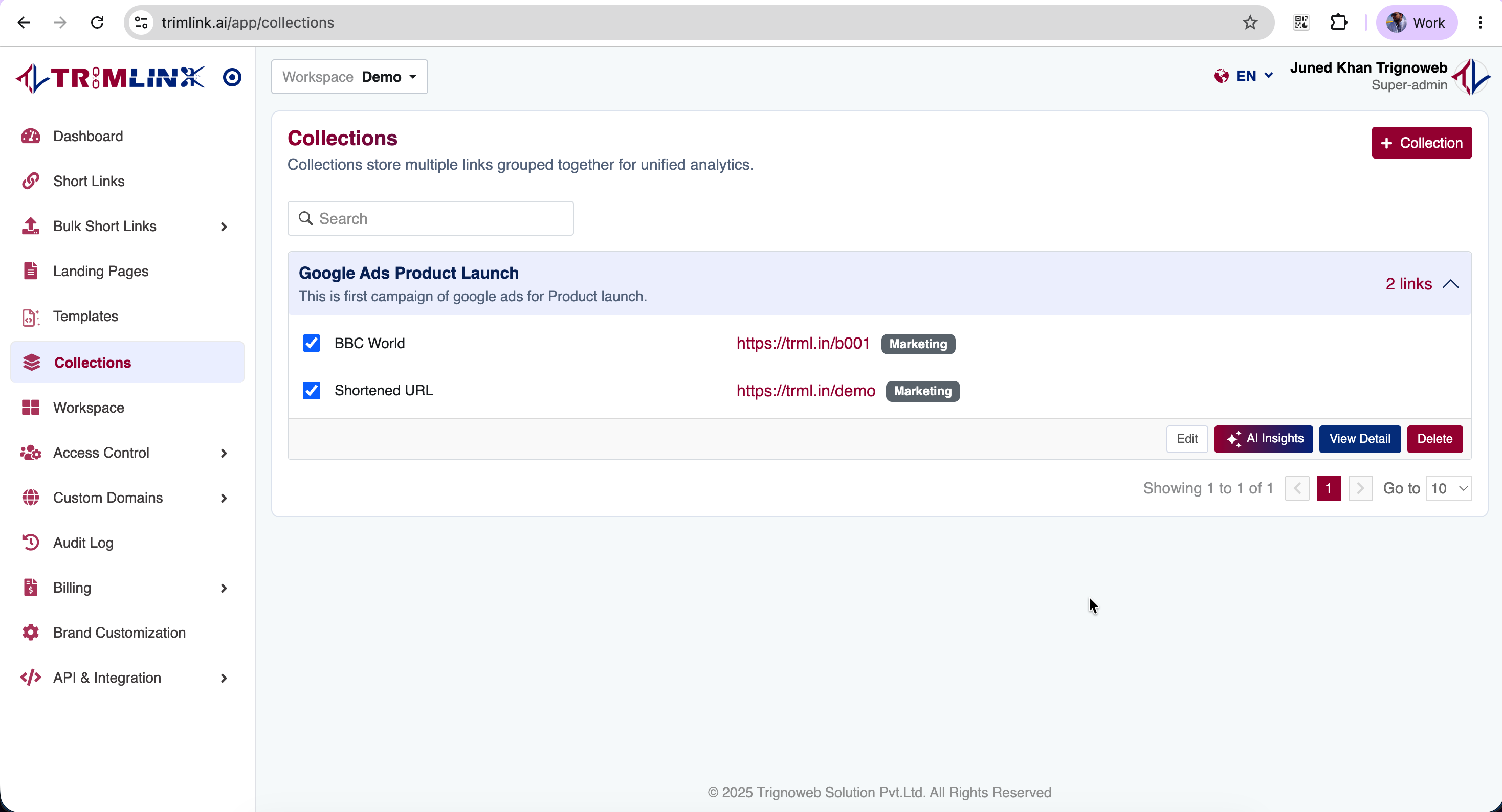
2. Manage Assigned URLs
Campaigns constantly grow. You can easily update which links belong in this folder:
- Add New Links: Use the search field to find recently created Short Links or Landing Pages. Check the box next to a URL to add it to this collection.
- Remove Links: If a link no longer belongs in this campaign, simply uncheck its box. Note: Unchecking a link does not delete the link; it just removes it from this specific folder.
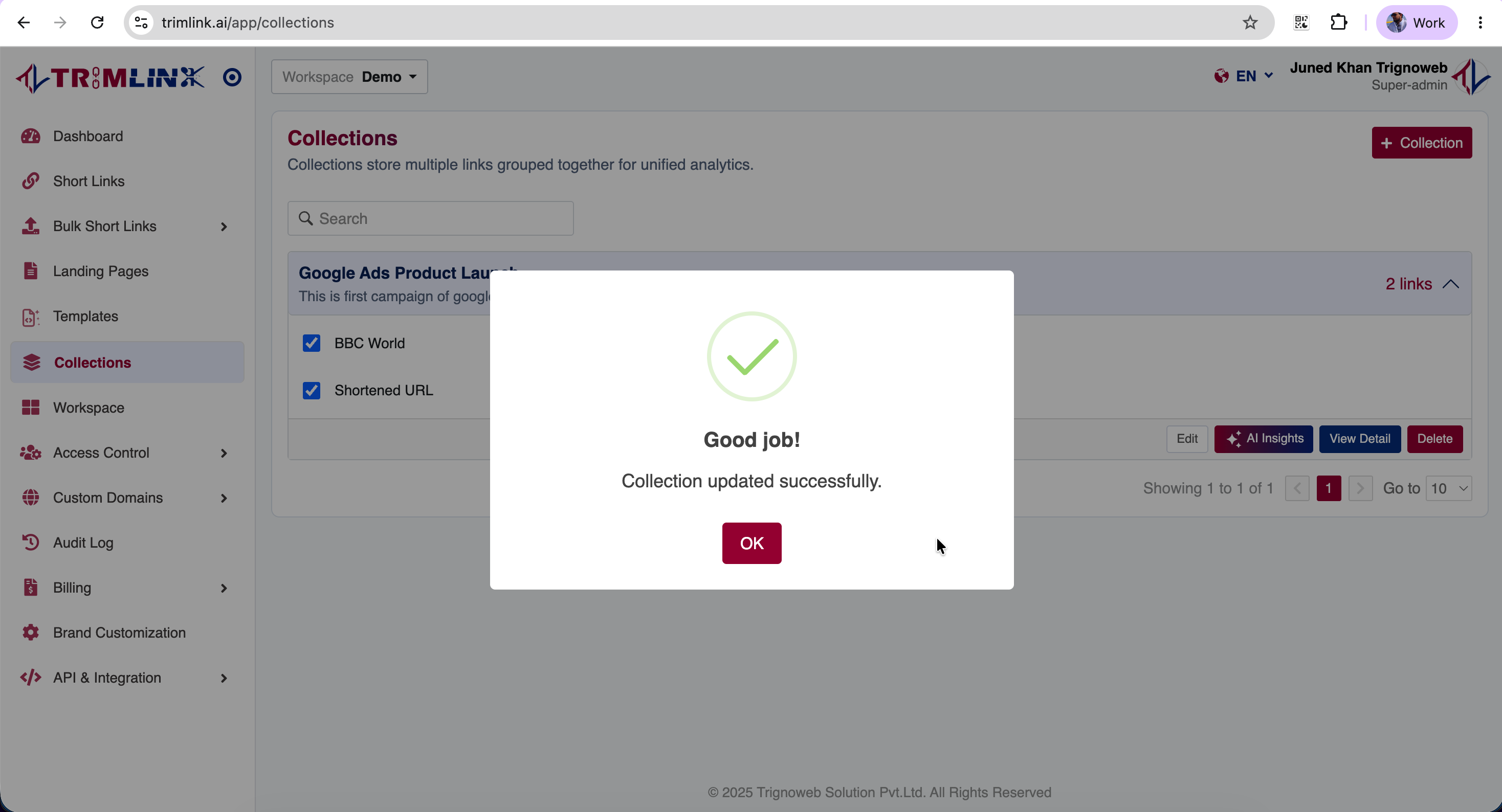
3. Save Changes
After making your adjustments:
- Review the updated information.
- Click the Save or Update button.
- Your changes are applied immediately across your entire workspace.
Phase 2: Delete a Collection
Collections that are no longer required (such as folders for concluded seasonal campaigns) can be permanently removed to keep your workspace clean.
How to Delete
- Open the Collections listing page from the left sidebar.
- Locate the collection you wish to remove.
- Click the Delete button (trash can icon).
- Review the warning in the confirmation dialog box.
- Confirm the deletion.
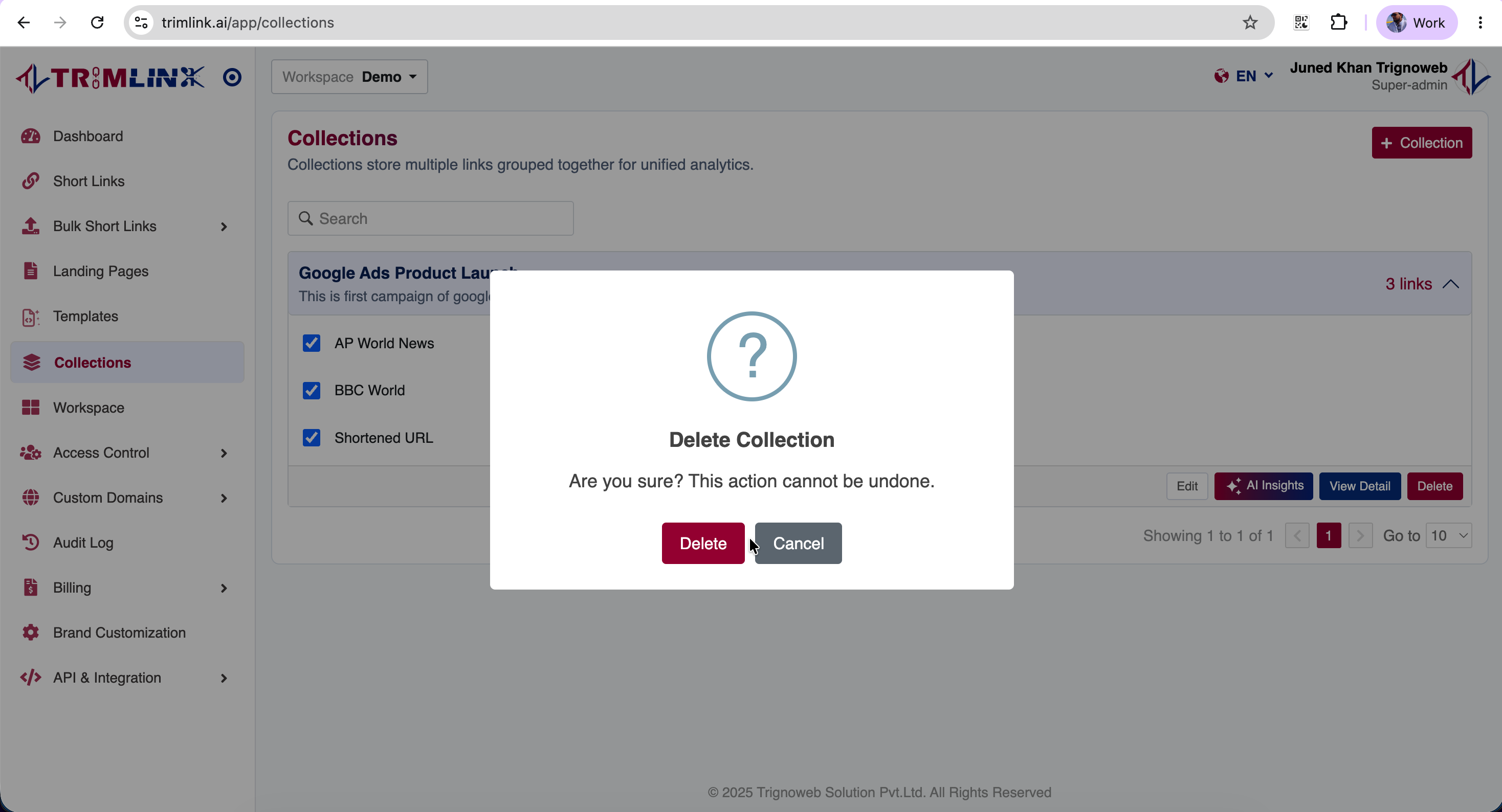
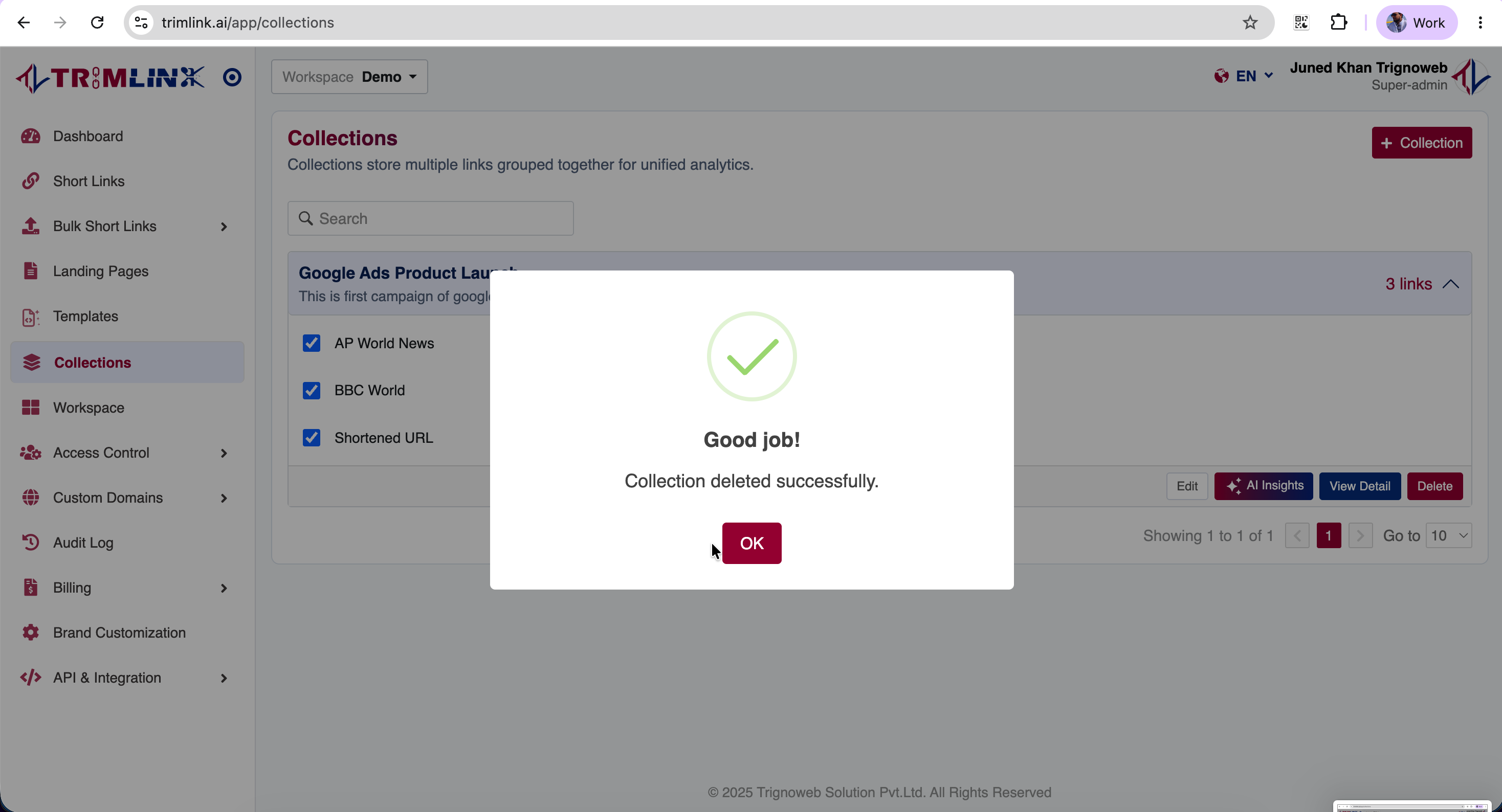
Critical Data Safety Note: Deleting a collection is perfectly safe for your active traffic. It does not delete the short links or landing pages inside it. Deleting a collection simply removes the organizational/workspace folder itself. All URLs that were assigned to that folder will immediately become "unassigned" but will remain completely active and visible in your main Short Links list.
Frequently Asked Questions
- Yes. You can edit the collection's name and description at any time from the Collections dashboard. The changes will instantly reflect across your workspace.
- To add more links, click the Edit button next to your collection. You can then use the search field and checkboxes to assign additional short links or landing pages to the folder.
- Open the collection in Edit mode, locate the assigned URL in the list, and uncheck its box. This removes it from the folder but does not delete the link itself.
- No. Deleting a collection only removes the organizational folder. Any short links or landing pages previously assigned to that collection are perfectly safe and will simply become 'unassigned' in your main library.
- No. Once a collection folder is deleted, the action is permanent and cannot be reversed. You would need to create a new collection and manually reassign the URLs.