
Two-Factor Authentication (2FA)
Two-Factor Authentication (2FA) adds an extra layer of security to your account. You can enable it from your profile settings using an authenticator app and download backup codes for recovery.
Step 1: Enable 2FA from Your Profile
Click your profile icon, go to My Profile, scroll down, and click "Enable Two-Factor Authentication".

Step 2: Scan the QR Code
Scan the QR code using an authenticator app like Google Authenticator, Authy, or Microsoft Authenticator.
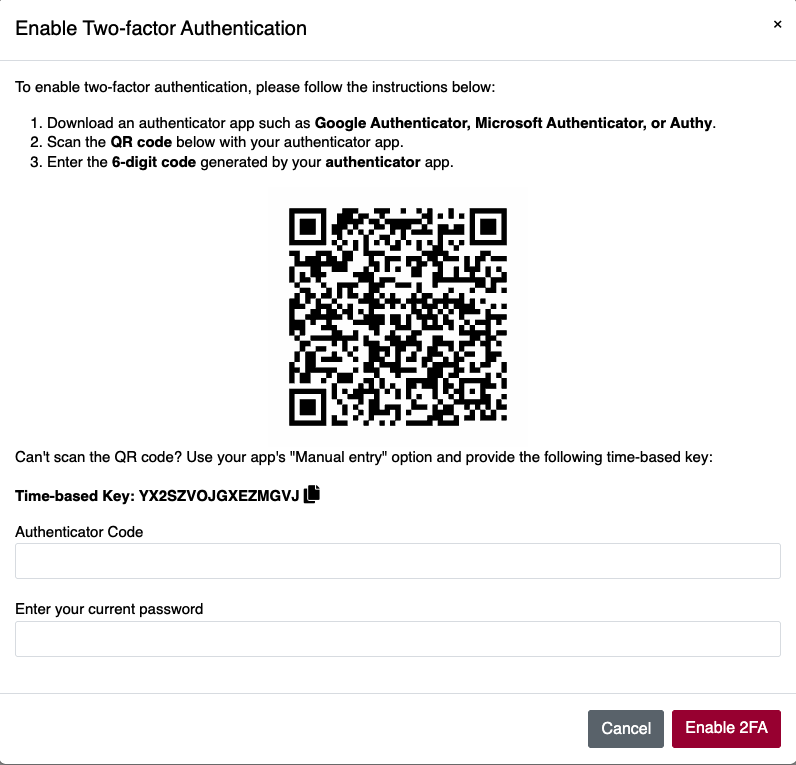
Can't scan the code?
Use this manual key to set it up manually:
Manual Key:
YX2SZVOJGXEZMGVJ
✅ Step 3: Complete the Setup
Enter the 6-digit code from your authenticator app along with your account password to confirm and enable 2FA.
After successful verification:
- 2FA is activated on your account
- You'll be logged out once
- Future logins will require both password and 2FA code
🛡️ Backup Codes
Once 2FA is enabled, you’ll be prompted to download backup codes.
- Use them if you can’t access your authenticator app
- Click “Download Backup Codes” and store them securely
- Each code is valid for one-time use only
⚠️ Never share your backup codes. Store them safely.

Login Flow with 2FA
Once 2FA is enabled:
- You must log in with:
- Your password
- A 6-digit code from the authenticator app
or - A valid backup code (if your app is unavailable)