
Templates Overview
On the Templates page you can browse, select, and manage HTML templates for your projects. There are two main sections:
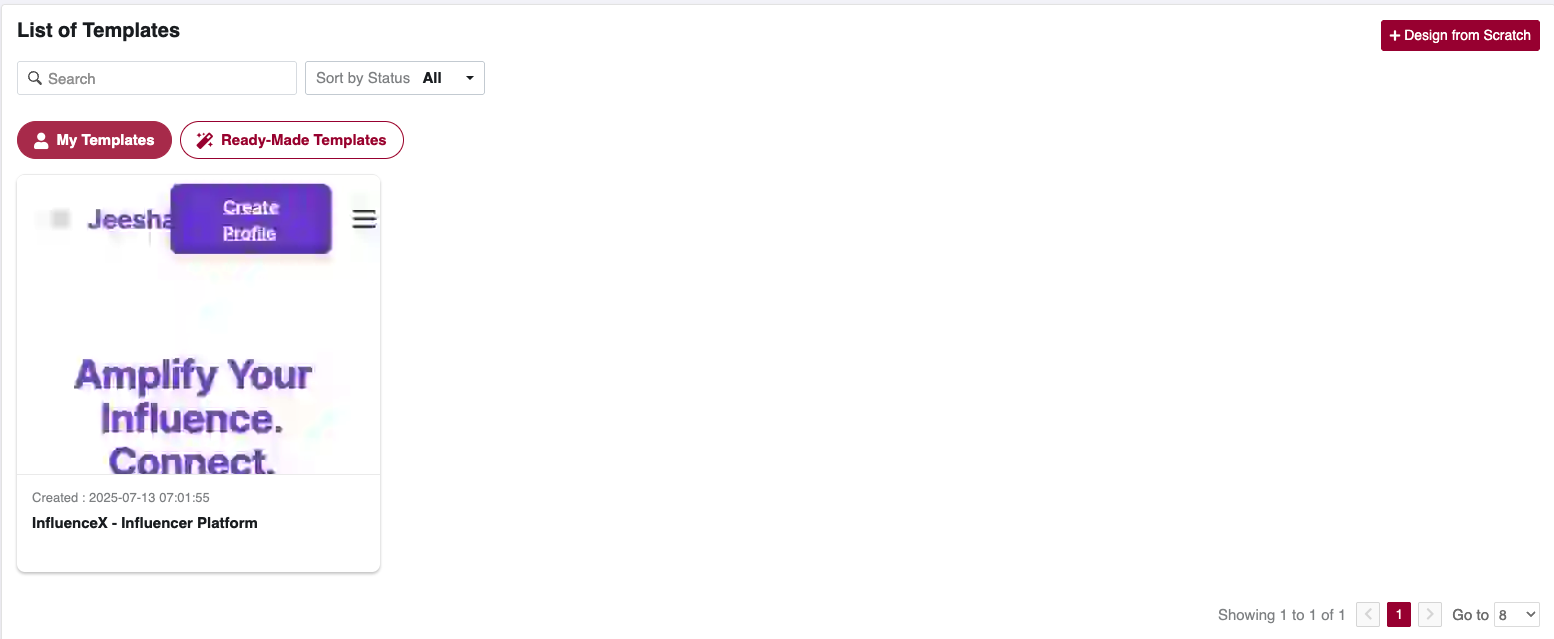
- My Templates – Templates you’ve created or added
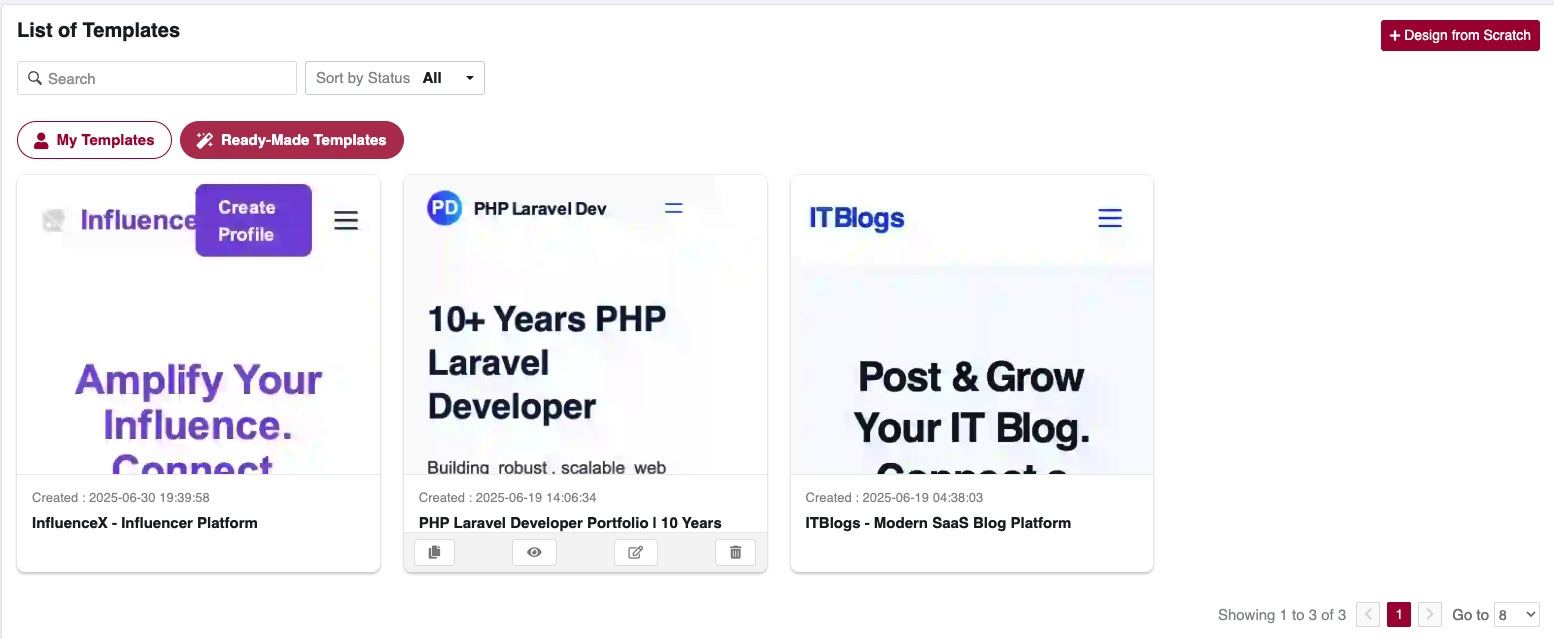
- Ready-Made Templates – A curated gallery of starter designs
You can also design from scratch by clicking the red “Design from Scratch” button.
1. Template Tabs
-
My Templates
-
Displays all templates you've added or created
-
Shows thumbnail preview, creation date, and title
-
Actions:
- View
- Edit
- Delete
- Ready-Made Templates
- Curated list of pre-built templates you can start from
- Click any template’s “+ Add” button (or its thumbnail) to copy it into My Templates
2. Design from Scratch
Click Design from Scratch to open the template editor with a blank canvas:
Top Action Buttons Overview
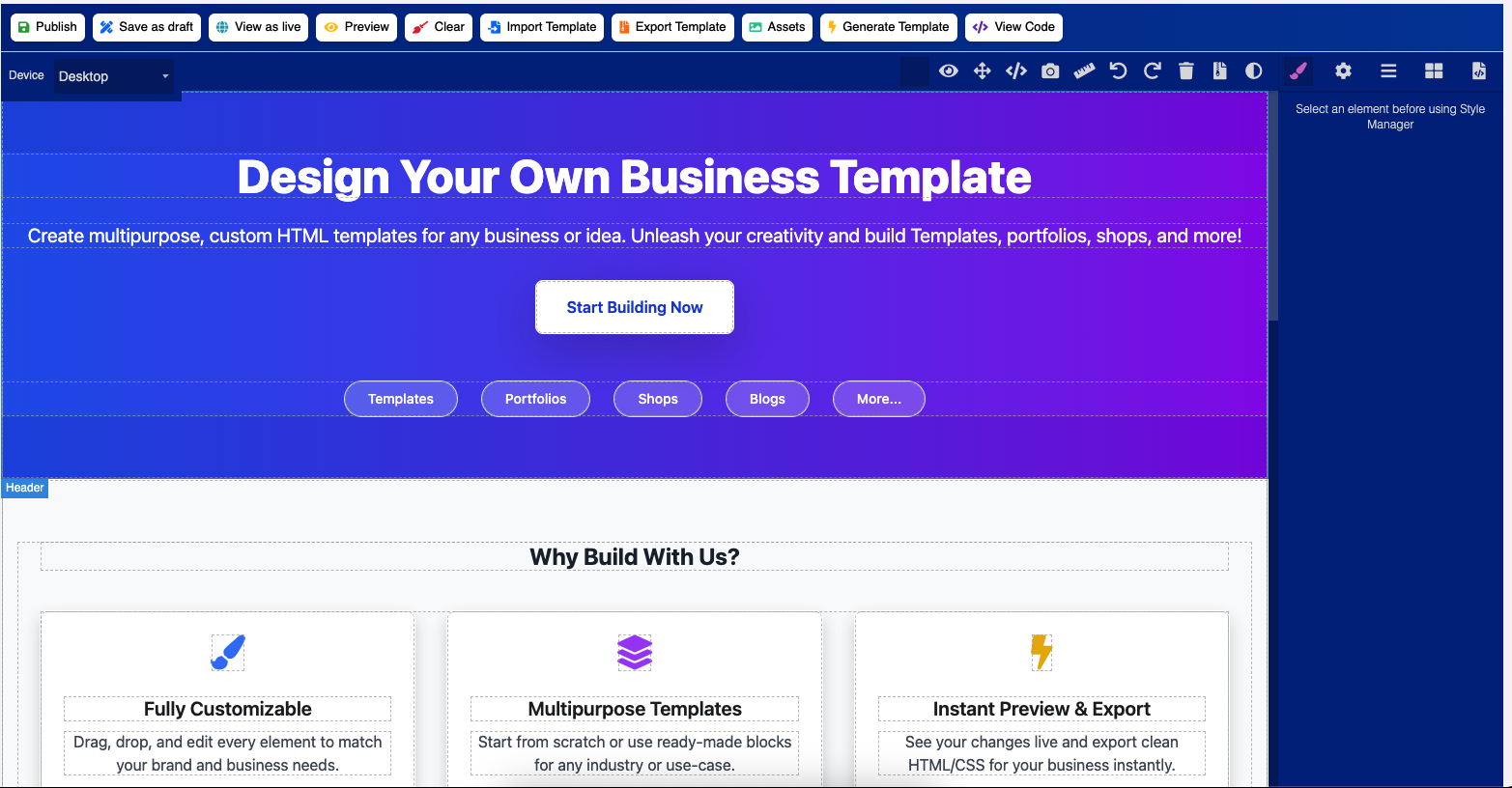
The editor provides various action buttons to manage and interact with your template efficiently. Refer to the toolbar shown below:

- Publish – Save and make the template live for public or internal use.
- Save as Draft – Save your progress without making it visible to others.
- View as Live – Opens a preview of how the published template appears.
- Exit Preview – Switch back to the edit mode from preview.
- Clear – Removes all content from the canvas (starts fresh).
- Import Template – Load a saved template from a file.
- Export Template – Download the current design as a template file.
- Assets – Upload and manage images, icons, and media used in your design.
- Generate Template – Auto-generate the template code/design.
- View Code – Open and review the raw HTML/CSS source code behind the design.
3. Moving Templates Between Sections
- Browse Ready-Made Templates
- Click the + or “Add” button on any template
- That template instantly appears under My Templates
- You can now edit, export, or delete it as needed
Next Steps
Now that you've created your own landing page template, you're ready to preview and launch it!
-- Head over to the Landing Page section. -- You'll now see your personalized landing page ready for review or publishing. -- Make changes any time using the Edit option in "My Templates".