Forget Password
If a user forgets their password, they can recover it using their registered email address.
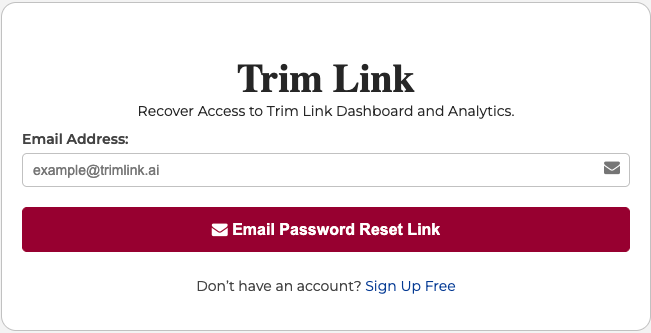
Step 1: Enter Registered Email
Users must provide their registered email address on the Forget Password screen.
- If the email is found in the system, a password reset link is sent to that address.
- If not, an error message is displayed indicating that the email is not registered.
Step 2: Password Reset Link
The email contains a secure one-time password reset link, valid for a limited time (e.g., 15 minutes).
When the user clicks the link, they are redirected to the password reset screen.
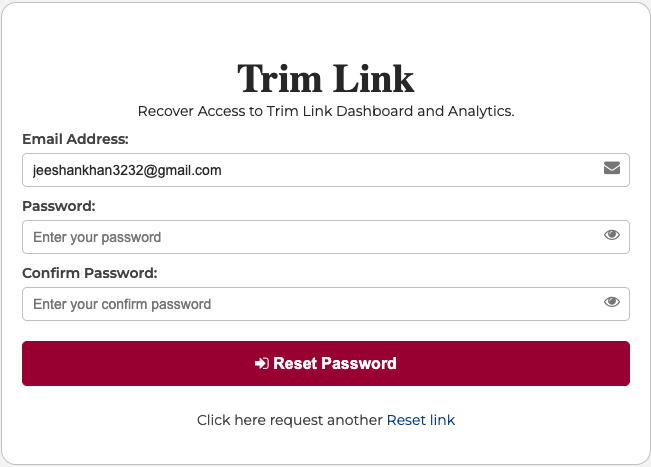
Step 3: Reset Password Form
On the password reset screen, the user will see a form containing:
- Email Address (auto-filled and non-editable)
- New Password
- Confirm New Password
After filling the form:
- The backend validates the token.
- If valid, the password is updated in the database.
- The token is then expired to prevent reuse.
Final Outcome
- The user is redirected to the login page after successful password reset.
- They can now log in using the new password.
- The old password is no longer valid.
Forget Password & Reset Screen Preview