Search & Verify Custom Domains
Searching for a custom domain is the first step to building your brand identity. By replacing generic short links with your own custom name, you make your links look professional, secure, and highly credible to your audience.
Before you can configure a custom domain in Trimlink, you can use our built-in Search Tool to verify if your desired brand name is available.
Phase 1: Why Brand Your Links?
Using a custom domain (e.g., link.yourbrand.com) transforms your marketing campaigns. By searching for and connecting your own domain, you unlock massive benefits:
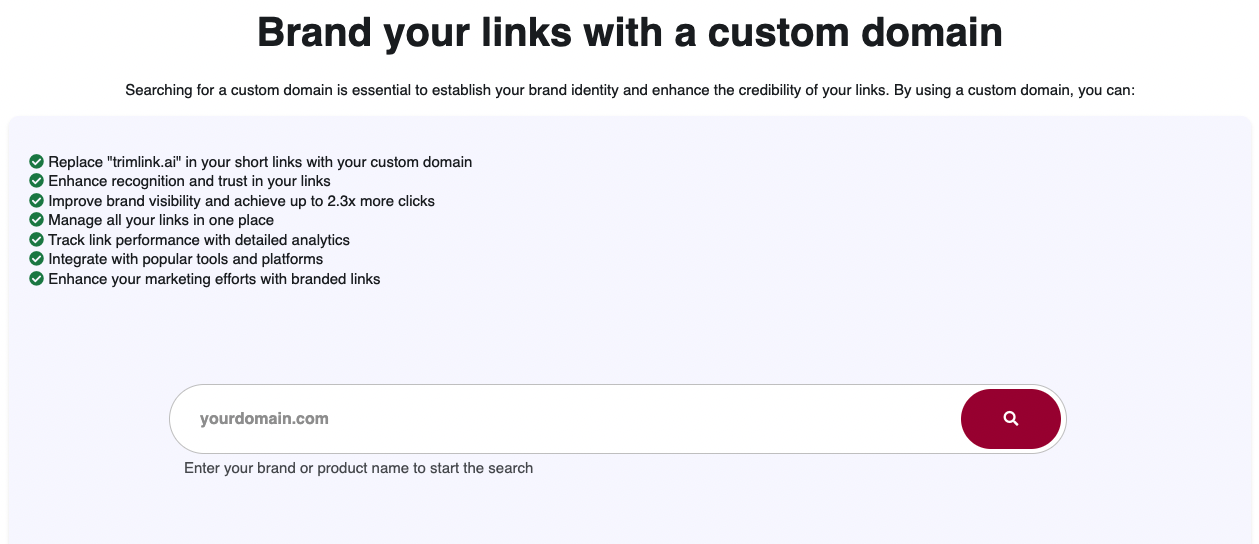
- Complete White-Labeling: Replace
trimlink.aiwith your own custom domain so your audience only sees your brand. - Increased Trust & Visibility: People trust recognized brand names. Custom domains prove your links are safe.
- Higher Click-Through Rates: Because of that increased trust, branded links can achieve up to 2.3x more clicks than generic short links.
- Centralized Link Management: Manage all your branded links in one organized workspace.
- Powerful Analytics: Track your custom domain's performance with detailed geographical and device analytics.
Phase 2: How to Search for a Domain
To check if your perfect branded domain is available:
- Open your Dashboard.
- Navigate to Custom Domains from the left sidebar menu.
- Locate the Find a Domain menu.
- Enter your desired domain name (e.g.,
yourbrand.coorgo.yourbrand.com). - Click the Search Icon (or hit Enter).
The system will instantly check the global registry and tell you if the domain is available for registration or if it is already taken.
Best Practice Tip: Keep it short! Since the goal is to create short links, try to find a domain name that is 15 characters or less. Extensions like
.link,.co, or.clickare excellent choices for link management.
Visual Reference
Phase 3: Next Steps
Once you find an available domain:
- Register the domain with your preferred registrar (such as GoDaddy, Namecheap, or Cloudflare).
- Return to Trimlink to Add the Custom Domain to your account.
- Configure your DNS settings to point the domain to Trimlink's servers.
Frequently Asked Questions
- The best custom domains are short, memorable, and clearly connected to your brand. Many companies use an abbreviation (like yourbrand.co) or a subdomain (like link.yourbrand.com).
- Trimlink allows you to search for and verify domain availability. Once you find an available domain, you will register it through a provider like GoDaddy or Namecheap, and then connect it to Trimlink.
- If the search results show the domain is unavailable, you will need to try a different variation, a different extension (like .link or .co), or use a subdomain of a website you already own.
- Yes. You can use this tool to verify main domains (yourbrand.com) or subdomains (go.yourbrand.com) to prepare them for setup.
- People hesitate to click generic links because they look like spam. By replacing the generic link with your actual brand name, users trust the link, which can result in up to 2.3x more clicks.