
Secure Your Account with Two-Factor Authentication (2FA)
Two-Factor Authentication (2FA) adds a powerful extra layer of security to your Trimlink account. When 2FA is turned on, signing in requires both your regular password and a unique verification code from a special authenticator app. This means your account stays safe even if someone else gets your password.
Turn On Two-Factor Authentication (2FA)
To begin securing your account, follow these simple steps from your profile settings:
- Click on your profile icon (usually in the top corner).
- Choose My Profile from the menu.
- Scroll down to find the Security section.
- Click the button that says Enable Two-Factor Authentication.
Profile Settings Screen

Set Up Your Authenticator App
After you enable 2FA, a special QR code will appear on your screen.
Open your favorite authenticator app on your smartphone or tablet and scan this QR code.
Supported Authenticator Apps include:
- Google Authenticator
- Microsoft Authenticator
- Authy
- Any app that uses time-based authentication codes
QR Code Setup Screen
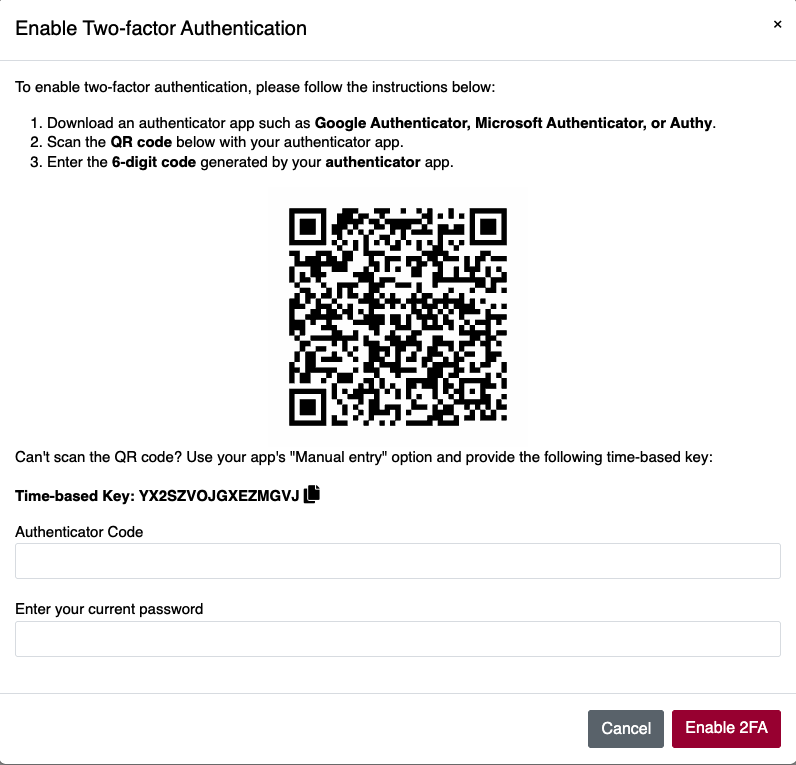
Manual Setup Option
If scanning the QR code doesn't work, you can usually find an option in your authenticator app to "enter a setup key manually." Just type in the special key shown on your screen (for example: YX2SZVOJGXEZMGVJ).
Verify and Finish the Setup
Once you've added your Trimlink account to your authenticator app, you'll need to enter two things to finish:
- The 6-digit verification code currently shown in your authenticator app.
- Your Trimlink account password.
Click Verify to complete the setup.
After successful verification:
- Two-Factor Authentication will be active for your account.
- You will be signed out one time for security reasons.
- From now on, every time you sign in, you'll need both your password and a fresh verification code.
Download Your Backup Codes
Immediately after turning on 2FA, you will see a set of one-time backup codes.
These codes are super important! They let you get into your account if you ever lose your phone or can't access your authenticator app.
Critical Information about Backup Codes:
- Download them right away and keep them in a very safe, secret place (not on your computer).
- Each backup code can only be used once.
- If you think someone might have seen your codes, you can always generate new ones from your profile settings.
Backup Codes Screen

Security Alert: Always keep your backup codes completely private and stored securely. Anyone who gets these codes could potentially access your account.
How to Sign In with 2FA Enabled
When Two-Factor Authentication is active, your sign-in process will have one extra step:
Standard 2FA Sign-In:
- First, enter your usual email address and password.
- Next, you'll be asked for the 6-digit code from your authenticator app.
- After entering the code, complete the sign-in.
If You Can't Access Your Authenticator App:
If your phone is lost or your app isn't working, you can use one of your backup codes instead of the authenticator app code. Remember, each backup code works only once.
Manage Your Two-Factor Authentication Settings
You can always go back to your profile settings at any time to:
- Check the current status of your 2FA.
- Generate a new set of backup codes.
- Turn off (disable) Two-Factor Authentication if you no longer need it (though not recommended).
For the absolute best security of your Trimlink account, we strongly recommend keeping Two-Factor Authentication enabled at all times.
Frequently Asked Questions
- An authenticator app generates time-sensitive verification codes. Popular options include Google Authenticator, Microsoft Authenticator, and Authy. Any app that supports time-based authentication codes will work with Trimlink.
- Backup codes are one-time-use codes that allow you to sign in if you lose access to your authenticator app or mobile device. It's crucial to download them immediately after enabling 2FA and store them in a very safe, private place.
- Authenticator apps typically generate a new 6-digit code every 30 seconds. This ensures that the codes are constantly refreshed for maximum security.
- Yes, you can disable Two-Factor Authentication at any time from your profile settings. However, we highly recommend keeping 2FA enabled for the best possible account security.
- If you enter an incorrect 2FA code, access will be denied. After several failed attempts, your account might be temporarily locked to prevent unauthorized access. Always ensure your authenticator app is synced correctly and enter the code carefully.