
View, Search, Filter & Export Audit Logs
Audit Logs act as the security camera for your Trimlink account. They provide a complete, unchangeable history of the important activities performed across your Organization.
By using this dashboard, administrators can easily monitor user actions, investigate unexpected changes, improve account security, and easily maintain compliance records.
Phase 1: Open Audit Logs
You can access your organization's security and activity history directly from your main dashboard.
- Open your Dashboard.
- Select your workspace on top left dropdown option.
- Navigate to Audit Logs from the left sidebar menu.
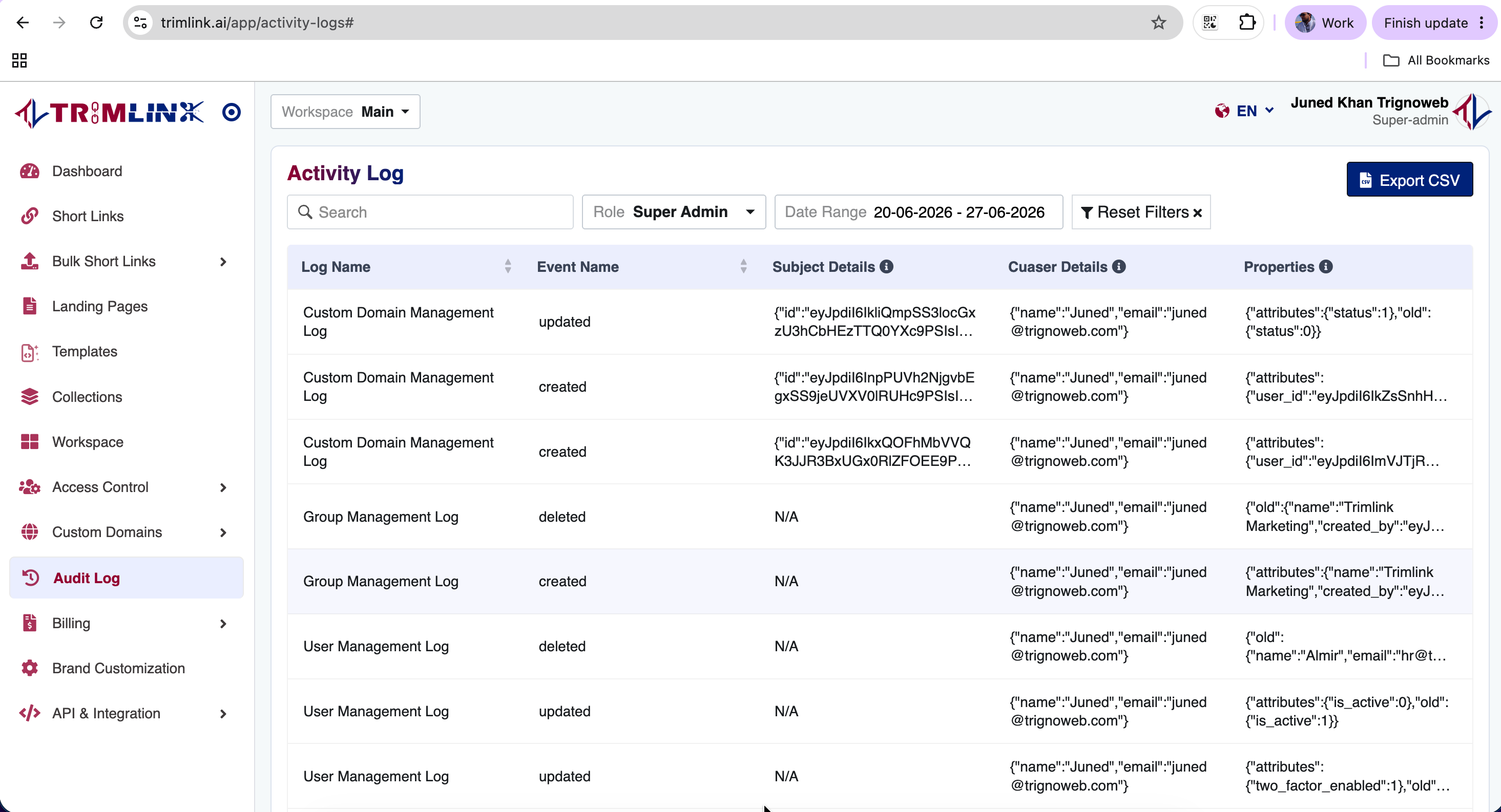
- The Audit Logs page will load, displaying your most recent activities at the top.
Each record gives you an immediate summary of the event, including what action was taken, who did it, and exactly when it happened.
Phase 2: Search and Filter Activities
As your team grows, you will generate thousands of activity events. Trimlink provides powerful filtering tools so you can quickly locate the exact action you are looking for.
Search for Specific Events
Use the Search box at the top of the page to find exact matches. You can type in keywords like:
- Event names (e.g., "Deleted Link", "Created Workspace")
- User information (e.g., "[email protected]")
- Resources (e.g., the name of a specific custom domain)
Filter by User Role
Use the Role dropdown to isolate activities performed by specific account tiers. For example, you can filter the list to only review critical system changes made by Super Admins.
Filter by Date Range
Select the Date Range filter to only show activities that happened during a specific time frame. This is incredibly useful if you need to investigate a mistake made over the weekend or review changes made during a specific holiday marketing campaign.
Navigation Tip: Click the Reset button at any time to wipe away all your active filters and return to the complete, live Audit Log history.
Phase 3: Review Activity Details
When you find an event you want to investigate, look at the columns for a detailed breakdown. Depending on the activity, Trimlink provides:
- Log Name / Event Name: The category and exact action that occurred (e.g., Link > Updated).
- Subject Details: What was changed. This identifies the specific resource, like the exact short URL or Workspace that was edited.
- Causer Details: Who did it. This identifies the specific team member who clicked the button.
- Properties: Additional metadata and technical information related to the event (such as IP addresses or browser data).
Phase 4: Export Audit Logs
You can easily download your Audit Logs to share reports with your IT team, perform internal audits, or maintain legal compliance records.
- First, apply any Search keywords or Date filters you need.
- Click the Export CSV button in the top right corner.
- Trimlink will generate and download a spreadsheet containing your requested data.
Critical Security Note: Audit Logs are strictly read-only and immutable. Not even Super Admins can alter, edit, or delete an audit record. This guarantees a 100% accurate, trustworthy history of your Organization.
Audit Log Best Practices
To keep your Organization completely secure, we recommend your administrators follow these rules:
- Use Filters Before Exporting: Don't export your entire history at once. Narrow down your results using the Date Range filter to generate smaller, easier-to-read CSV files.
- Monitor Administrative Actions: Regularly filter the logs by the "Super Admin" role to ensure highly privileged users are following company security rules.
- Investigate Promptly: If a team member complains that a landing page or link suddenly stopped working, use the Search bar immediately to trace exactly who changed it and when.
- Keep Compliance Records: Export your logs at the end of every month or quarter and store them securely to meet internal IT guidelines.
Frequently Asked Questions
- Audit Logs record important user activities such as login events, workspace changes, link creation or deletion, team permission updates, and critical security changes inside your Organization.
- No. Audit Logs are strictly read-only and immutable. Not even Super Admins can alter or delete an audit record. This guarantees a 100% accurate history for security and compliance.
- Access to the Audit Logs dashboard is restricted based on your assigned Organization role. Typically, only Super Admins and authorized managers can view this data.
- Yes. Authentication events (like logging in, logging out, or enabling 2FA) are recorded in the Audit Logs alongside the user's details and timestamps.
- You can use the Search bar to type in the specific user's name or email address. The log will instantly filter to show only the actions performed by that person.
- Use the Date Range filter at the top of the screen to select a start and end date. This is perfect for investigating changes made during a specific marketing campaign.
- Yes. Use the Role dropdown filter to display activities performed strictly by specific user tiers, such as standard Members or Super Admins.
- The Reset option instantly clears any search keywords, date ranges, or role filters you have applied, returning you to the complete, unfiltered Audit Log history.
- Click the Export CSV button at the top of the dashboard. Trimlink will instantly generate a spreadsheet of your logs that you can share with your IT or compliance teams.
- The export tool respects your active filters. If you filter the dashboard to only show events from 'Last Week,' your downloaded CSV file will only contain records from last week.